
Mastering Selenium Python Web Scraping
- Dec 9, 2025
- 15 min read
If you're trying to scrape a modern website, you've probably noticed that simple HTTP requests don't always cut it. That’s because so many sites today rely on JavaScript to load their content. Your script grabs the initial HTML, but the good stuff—the product listings, the user reviews, the data you actually want—is missing.
This is exactly where using Selenium for Python web scraping comes into play. It automates a real web browser, letting your script interact with a page just like a person would. Think clicking buttons, filling out login forms, or scrolling to the bottom of the page to load more results. It’s the go-to tool when libraries like Requests and BeautifulSoup just can't see the whole picture.

Why Selenium Is Essential for Dynamic Web Scraping
Many modern websites are built on frameworks like React or Angular, which use JavaScript to build the page right in your browser. The first HTML document you receive is often just a basic shell. All the important content is fetched and rendered after the initial page load.
This is where traditional scraping tools fall flat. A library like is brilliant for fetching static HTML, but it can't run JavaScript. It sees the page before any of that dynamic content appears, leaving your scraper with an empty or incomplete view. That's why your script might fail to find the elements you can clearly see in your own browser.
The Browser Automation Advantage
Selenium closes this gap. Instead of just downloading a file, it launches and controls a full-fledged web browser like Chrome or Firefox. Your Python script can then wait for the JavaScript to finish running and interact with the final, fully rendered page.
This is a game-changer for handling common web features:
Infinite Scroll: You can write code that programmatically scrolls down the page, triggering new content to load as you go.
Clicking Buttons: Need to click a "Load More" button or navigate through tabs? Selenium can do that.
Handling Logins: It can fill out username and password fields to get behind an authentication wall and access protected data.
Waiting for Elements: You can tell your script to pause and wait intelligently until a specific piece of data has actually appeared on the screen.
The web scraping market is booming—projected to hit between $2.2 billion and $3.5 billion by 2025—largely because the demand for data from these complex, dynamic sites is exploding. And while Python is the language of choice for 69.6% of scraping projects, Selenium is a cornerstone of that ecosystem, with 26.1% of developers using it for browser automation.
Selenium's real power is its ability to mimic human behavior. If you can do something manually in your browser—click, scroll, type—you can almost certainly automate it with Selenium and Python.
This makes Selenium a must-have tool for any serious web scraping project targeting modern web applications. If you're curious about other automation tools, you might also want to read our comparison of Puppeteer vs Playwright.
Setting Up Your Selenium Scraping Environment
Before you can start pulling data, you need to build a solid foundation. Trust me, spending a few extra minutes setting up your environment properly now will save you hours of headaches later. It’s the difference between a reliable scraper and one that’s constantly breaking because of some obscure dependency conflict.
The first thing I always do is create a virtual environment. Think of it as a clean, self-contained sandbox just for your project. This keeps all your project-specific packages neatly separated from everything else on your system.
Just pop open your terminal, head to your project folder, and run this:
To get inside this new environment, you need to activate it.
On Windows:
On macOS/Linux:
You'll know it worked when you see prepended to your command prompt. Now you're in a clean workspace.
Getting Selenium and Its Driver
With your environment active, installing Selenium is a one-liner with pip, Python's package manager. This grabs the core library you'll use to write your automation scripts.
Here's a crucial point: Selenium doesn't actually control the browser on its own. It needs a helper called a WebDriver. This is a separate program that acts as a bridge, translating your Python commands into instructions that a browser like Chrome or Firefox can understand.
Why this matters: Your script says, "click this button," and the WebDriver is what tells the actual Chrome browser to perform that click. Without the right WebDriver, Selenium is essentially shouting into the void.
For years, managing WebDrivers was a manual, frustrating process. You had to find your exact Chrome version, download the matching ChromeDriver, and make sure it was in the right place. It was a pain.
Thankfully, that’s all in the past. Modern Selenium (versions 4.6 and up) includes a fantastic tool called Selenium Manager. It automatically checks your browser version and downloads the correct driver for you. It just works.
Now, firing up a browser in your Python script is incredibly simple:
from selenium import webdriver
Selenium Manager handles the driver download behind the scenes
driver = webdriver.Chrome()
Now you're ready to go! Let's visit a site.
driver.get("https://example.com")
Let's see if it worked
print(driver.title)
Always remember to close the browser when you're done
driver.quit()
And that’s it! Your environment is isolated, Selenium is installed, and the driver management is completely automated. This setup is your launchpad for scraping. If you want a broader look at different scraping tools, our practical guide on scraping websites with Python is a great next step.
With the foundation laid, we can move on to the fun part: finding and interacting with elements on the page.
Interacting with Web Elements and JavaScript
With your environment ready, it's time for the fun part: actually telling the browser what to do. This is where Selenium and Python web scraping really comes to life. We're moving beyond just opening a web page and into programmatically finding, clicking, and typing into it, just like a person would.
The whole process boils down to two things: locating a specific HTML element on the page and then performing an action on it.
Selenium provides a whole suite of tools for this. You're not stuck with just one way of finding things; you can pick the best locator for the job, which is a huge advantage when you're building a scraper that needs to last.
Finding Elements with Precision
Before you can click a button or type in a form, you need to point Selenium to the right element. You'll do this with the method, feeding it a locator strategy from the class. Each one has its place.
Here are the locators I find myself using most often:
By ID: This is your best friend. When an element has a unique attribute, it's the fastest and most reliable way to grab it. The only catch? Not every element has one.
By Name: Really handy for forms. Think tags that almost always have a attribute.
By Class Name: Good for targeting elements by their , but be warned—classes are often shared across many elements, so you might not get the specific one you want.
By Tag Name: Lets you find elements by their HTML tag, like all the headings or links on a page.
By CSS Selector: My personal favorite for its sheer power and flexibility. If you know CSS, you can write complex selectors to pinpoint exactly what you need.
By XPath: The ultimate locator. XPath can traverse the entire HTML document tree, letting you find elements based on their relationship to other elements. It's a lifesaver on messy, poorly coded websites.
Let's say you're on a shopping site and want to type into the search bar. You'd use your browser's developer tools to inspect it and discover its is "search-input". Your code becomes incredibly simple:
from selenium.webdriver.common.by import By
Pinpoint the search bar using its unique ID
search_bar = driver.find_element(By.ID, "search-input")
Now that we have it, we can type into it
search_bar.send_keys("Python web scraping")
Handling JavaScript and Dynamic Content
This is where Selenium blows other scraping libraries out of the water. Modern websites are rarely static; content often pops into existence based on your actions—scrolling, clicking, or just waiting for a script to finish. If your scraper tries to grab an element that hasn't loaded yet, you'll get a and your script will crash.
A common beginner mistake is to just pause the script with . This is a bad habit. It either wastes time by waiting too long or, worse, doesn't wait long enough and causes random failures.
The professional way to handle this is with explicit waits. An explicit wait tells Selenium to keep checking for a specific condition—like an element becoming clickable—for a set amount of time before giving up. This makes your scraper both faster and dramatically more reliable.
Pro Tip: Mastering explicit waits is probably the single most important thing you can do to build a stable Selenium scraper. It solves timing problems by making your script wait for the page, not the other way around.
Imagine you click a "Load More" button and new product details appear after a second or two. Instead of guessing how long to wait, you can tell Selenium to wait until the product title is actually visible.
from selenium.webdriver.support.ui import WebDriverWaitfrom selenium.webdriver.support import expected_conditions as EC
Wait a maximum of 10 seconds for the element to show up
wait = WebDriverWait(driver, 10)product_title = wait.until(EC.visibility_of_element_located((By.ID, "product-title")))
Once it's visible, we know it's safe to grab the text
print(product_title.text)This ability to interact with JavaScript-heavy sites is what gives Selenium its edge. While it uses more resources than simpler tools, its power to handle logins, clicks, and dynamic rendering means it can successfully scrape up to 99% of modern websites. For complex web applications, that kind of capability is essential. You can learn more by exploring these insights on AI-powered versus traditional scrapers and how they stack up.
Taming Multi-Page Websites and Structuring Your Data
Pulling data from a single page is one thing, but the real treasure is often spread across dozens, or even hundreds, of pages. Think about product listings, search results, or article archives. To get the full picture, your scraper has to learn how to navigate. This is where you graduate from basic extraction to building a truly intelligent web scraping bot.
The most common hurdle you'll face is pagination. Websites use everything from simple "Next" buttons to numbered page links to break up their content. Your scraper needs to handle these gracefully. If you don't build your logic to account for reaching the final page, it's going to crash. Every time. Getting this right from the start is what separates a reliable scraper from a frustrating one.
The "Next" Button Loop: A Scraping Classic
You'll run into the classic "Next" button on almost every project. The logic is beautifully simple: find the button, click it, scrape the new page's data, and repeat the process until there’s no "Next" button left to click.
The best way I’ve found to tackle this is with a loop. It just keeps running as long as it can find a clickable "Next" button. Inside the loop, you do your scraping and then tell Selenium to click to the next page.
Here’s what that looks like in practice:
from selenium.common.exceptions import NoSuchElementException
while True: # --- Put your data extraction code for the current page right here --- # For example, grabbing all the product titles and prices.
try:
    # Find the 'Next' button
    next_button = driver.find_element(By.LINK_TEXT, "Next")
    next_button.click()

    # This is a clever little wait. It waits for the *old* button to go stale,
    # which is a great signal that the new page has loaded.
    wait.until(EC.staleness_of(next_button))

except NoSuchElementException:
    # Can't find the button? We must be on the last page.
    print("Reached the end. Scraping complete.")
    break
The magic here is the block. When Selenium gets to the last page and can't find another "Next" button, it would normally throw a and crash your script. Instead, we catch that specific exception and use it as our signal to break the loop and finish the job. It's a clean, predictable way to handle the end of a pagination sequence.
Getting Your Scraped Data in Order
Once you've navigated the site and pulled out all the raw HTML, you have to do something with it. Just printing data to your terminal is fine for a quick test, but it's useless for anything real. The whole point is to turn that messy web data into something clean and structured.
A super effective way to do this is to store everything in a list of Python dictionaries. Think of it like this: each dictionary is one item you scraped (a product, a review, a job post), and the keys are the data fields ("title," "price," "location"). This format is a dream to work with in Python and makes it incredibly easy to convert to other formats like JSON or CSV later on.
Pro Tip: Structuring your data into a list of dictionaries is a fundamental web scraping pattern. It cleanly separates the scraping part of your code from the saving part, which makes everything much easier to build, debug, and maintain.
For example, after scraping a product from an e-commerce site, you'd build a dictionary for it:
product_data = { 'title': 'The Legend of Zelda: Ocarina of Time', 'price': '$19.99', 'rating': '4.8 stars'}
Now, add it to your main list
scraped_items.append(product_data)
As your scraper loops through pages and elements, it just keeps adding these little dictionaries to your master list. By the time it's done, you have a single, beautifully organized variable holding all the data from the entire website.
Saving Your Data to a CSV with Pandas
You've got all your data sitting in a neat list of dictionaries. Now what? The final step is getting it out of your script and into a file you can actually use. For this, the Pandas library is the absolute go-to in the Python world. It can take your list of dictionaries and turn it into a powerful, table-like object called a DataFrame in a single line of code.
From there, saving it to a CSV file is just as easy. A CSV (Comma-Separated Values) file is perfect because anyone can open it in Excel or Google Sheets, and it’s a standard format for databases and analysis tools.
Here’s all it takes to export your list:
import pandas as pd
Let's assume 'scraped_items' is your list full of data dictionaries
df = pd.DataFrame(scraped_items)
Save it to a CSV file. 'index=False' prevents Pandas from adding an extra column.
df.to_csv('product_data.csv', index=False, encoding='utf-8')
print("Data successfully exported to product_data.csv!")
This simple workflow is the core of most scraping projects:
Navigate: Move through pages like a human.
Extract: Grab the raw data you need.
Structure: Organize it into a list of dictionaries.
Export: Save it to a clean CSV using Pandas.
Mastering these patterns for navigating and handling data is what takes your selenium python web scraping from a simple script to a powerful tool capable of building valuable datasets from entire websites.
Handling Anti-Bot Measures and Scaling Your Scraper
Once your scraper starts making more than a handful of requests, you'll inevitably run into a website's defenses. Anti-bot systems are designed to spot and shut down automated traffic, which can stop your selenium python web scraping project cold. Building a scraper that can withstand this scrutiny isn't just about clean code; it’s about teaching your script to behave less like a robot and more like a real person.
There's no single magic bullet for getting past these defenses. The key is a layered strategy. By combining several techniques, you dramatically boost your chances of flying under the radar. It's an endless cat-and-mouse game, and the goal is to blend in seamlessly with genuine user traffic.
Making Your Scraper Look More Human
The most basic anti-bot systems are on the lookout for obvious signs of automation. Think rapid-fire requests from the same IP address with a generic browser signature—it's a dead giveaway. Your first line of defense is to start randomizing these digital fingerprints.
A surprisingly simple yet effective tactic is to rotate your User-Agent. The User-Agent is just a string of text your browser sends to identify itself, like "Chrome on Windows." By default, Selenium sends one that can be easily flagged.
Luckily, you can set a custom one when you initialize your WebDriver:
from selenium import webdriverfrom selenium.webdriver.chrome.options import Options
options = Options()
A more common, human-like User-Agent
options.add_argument("user-agent=Mozilla/5.0 (Windows NT 10.0; Win64; x64) AppleWebKit/537.36 (KHTML, like Gecko) Chrome/91.0.4472.124 Safari/537.36")
driver = webdriver.Chrome(options=options)
Another dead giveaway is robotic timing. A script that clicks and loads a new page every 500 milliseconds on the dot is clearly not human. You need to introduce randomized delays between actions. A quick dip into Python's and modules is all it takes to wait for unpredictable intervals.
import timeimport random
Wait for a random duration between 2 and 5 seconds
time.sleep(random.uniform(2, 5))
This tiny addition makes your scraper's request pattern far less predictable and much harder for a simple bot detector to catch.
Overcoming IP Blocks with Proxies
Even with the perfect User-Agent and human-like timing, making hundreds of requests from a single IP address will get you blocked. It’s not a matter of if, but when. This is where proxies become non-negotiable. A proxy server acts as a middleman, routing your request through its own IP address so the target website never sees yours.
For any serious scraping project, you’ll want to invest in rotating residential proxies.
Residential Proxies: These are real IP addresses from Internet Service Providers (ISPs) assigned to actual homes. From the website's perspective, your requests look like they're coming from a regular user.
Rotating: This means your IP address changes automatically with every request or after a few minutes. This makes it nearly impossible for a server to connect the dots and block you based on your IP.
Manually juggling a list of proxies is a nightmare. They go down, get blocked, and need constant health checks. A dedicated service that handles all the rotation, geo-targeting, and maintenance for you is the way to go.
Integrating a proxy service usually just means passing your credentials to the proxy endpoint. You can dive deeper into how this works and get it set up in our guide on rotating proxies for web scraping.
Scaling Up with Headless Browsers and Services
When you're ready to move your scraper to a server and process thousands of pages, performance becomes the new bottleneck. Running a full browser with its graphical user interface for every single task eats up a ton of memory and CPU. That's where headless mode saves the day.
A headless browser is just a regular browser that runs in the background without the visual component. It still does everything you need—rendering JavaScript, managing cookies, and executing your commands—but it uses far fewer resources. This lets you run many more scrapers in parallel on the same hardware.
Switching to headless mode is as simple as adding an argument:
options = Options()options.add_argument("--headless")driver = webdriver.Chrome(options=options)
For truly large-scale operations, even managing a fleet of headless browsers and proxies can become a full-time job. At this point, it often makes more sense to offload the entire infrastructure challenge to a dedicated web scraping API like ScrapeUnblocker.
These services bundle everything—JavaScript rendering, residential proxies, CAPTCHA solving, and browser fingerprinting—into one package. You just send the URL you want to scrape and get clean HTML back. This lets you stop worrying about evasion tactics and focus entirely on what matters: parsing the data.
Build a Complete Scraper from Start to Finish
Alright, let's move past the theory and build something practical. The best way to really understand all these concepts is to put them to work. We're going to build a simple but functional e-commerce scraper that pulls together everything we've discussed so far. Think of this as your new baseline—a script you can tear apart and rebuild for your own projects.
Our mission is to scrape product names and prices from a shop that loads its content dynamically. We'll need to handle multiple pages and, at the end, organize all that data into a neat CSV file.
Getting the Scraper Set Up
First things first, we need to import our toolkit. This means bringing in Selenium for driving the browser, BeautifulSoup for making sense of the HTML, and Pandas for saving our data. After the imports, we'll get our Chrome WebDriver fired up and ready to go.
import pandas as pdfrom bs4 import BeautifulSoupfrom selenium import webdriverfrom selenium.webdriver.common.by import Byfrom selenium.webdriver.support.ui import WebDriverWaitfrom selenium.webdriver.support import expected_conditions as ECfrom selenium.common.exceptions import TimeoutException, NoSuchElementException
Initialize the Chrome WebDriver
driver = webdriver.Chrome()
The base URL of the e-commerce site we are scraping
base_url = "https://sandbox.oxylabs.io/products"
With our imports and driver ready, the next step is to create an empty list to store the data we find. Then, we’ll kick off the main loop that will drive the scraping process.
Looping Through Pages and Grabbing the Goods
The core of our scraper will be a loop that keeps running as long as it can find a "Next" page button to click.
Inside this loop, we’ll use an explicit wait. This is a critical step. We’re telling Selenium to pause and wait up to 10 seconds for the product grid to actually appear on the page before we try to scrape anything. This simple instruction prevents a ton of errors you’d get from trying to grab elements that haven't loaded yet.
Once the content is there, we pass the page’s HTML over to BeautifulSoup and start hunting for the product details. We'll pull the name and price for each item, package them into a dictionary, and add it to our main list.
scraped_data = []current_url = base_url
while True: driver.get(current_url) print(f"Scraping page: {current_url}")
try:
    # Wait up to 10 seconds for the product container to be present
    WebDriverWait(driver, 10).until(
        EC.presence_of_element_located((By.CLASS_NAME, "product-card"))
    )

    # Parse the page source with BeautifulSoup
    soup = BeautifulSoup(driver.page_source, 'html.parser')
    products = soup.find_all('div', {'class': 'product-card'})

    for product in products:
        name = product.find('h4').text.strip()
        price = product.find('div', {'class': 'price-wrapper'}).text.strip()
        scraped_data.append({'Product Name': name, 'Price': price})

except TimeoutException:
    print("Timed out waiting for page to load.")
    break
Handling Pagination and Saving Your Work
The last piece of the puzzle is navigating to the next page. We'll wrap our logic for finding the "Next" button in a block. This is a clean way to handle the end of the line.
If Selenium finds the button, we grab its link and set it as the for the next pass. If it throws a , we know we've reached the final page, and it's time to break the loop.
This infographic breaks down the essential steps for making your scraper more robust and less likely to get flagged.
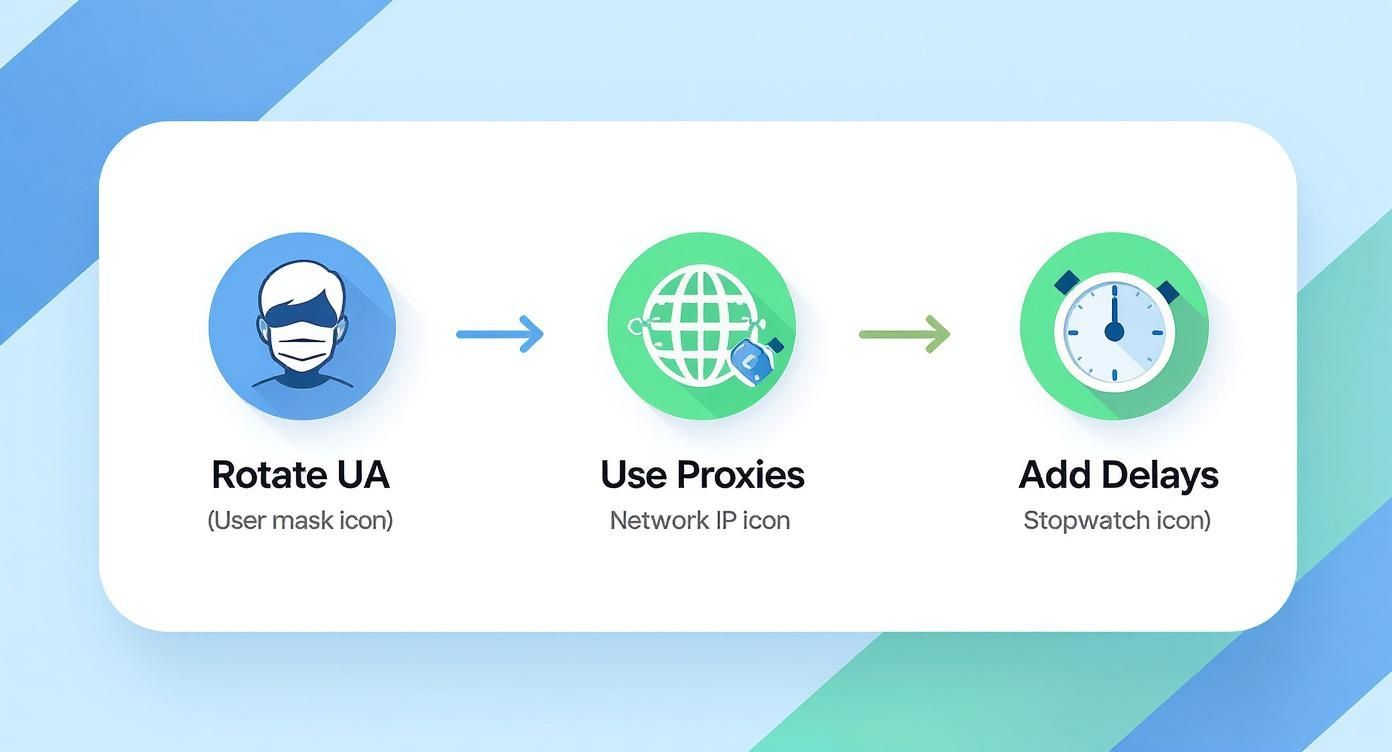
Adopting these habits helps your scraper mimic human behavior, which dramatically lowers the risk of getting blocked.
Once our loop has finished its run, we shut down the browser to free up resources. The final step is to hand our list of data over to Pandas, which will turn it into a DataFrame and export it as a clean CSV file. Job done.
try: # Find the 'Next' page link next_page_element = driver.find_element(By.CSS_SELECTOR, "a[aria-label='Go to next page']") current_url = next_page_element.get_attribute('href') except NoSuchElementException: print("No more pages left. Scraping finished.") break
Close the browser
driver.quit()
Convert the list of dictionaries to a Pandas DataFrame and save to CSV
df = pd.DataFrame(scraped_data)df.to_csv('ecommerce_products.csv', index=False, encoding='utf-8')
print("Data has been successfully saved to ecommerce_products.csv")
There you have it—a solid, complete script. You can now take this code, swap out the selectors and URLs, and adapt the logic to tackle just about any scraping project you have in mind.
Comments