
selenium web scraping python: Master Dynamic Data in Minutes
- Nov 14, 2025
- 16 min read
If you're trying to scrape data from a modern, interactive website, you've probably hit a wall with simpler tools. This is where the powerhouse combination of Selenium with Python comes into play. It's the go-to solution when you need to automate a real web browser, letting your script see and interact with a page exactly as a human would.
Why Selenium Is Essential for Modern Web Scraping

Ever run a scraper and gotten back nothing but an empty shell of HTML? You've likely run into a site built with a JavaScript framework like React, Vue, or Angular. These modern websites load a basic page first, then use JavaScript to fetch and display the actual content dynamically.
Traditional scrapers that just make HTTP requests can't see this content—they only get the initial, often blank, source code. Selenium solves this problem by driving a complete browser instance.
Instead of just requesting a page, your selenium web scraping python script takes full control of a browser, which then renders the page completely. This opens up a world of possibilities:
Execute JavaScript: Your script sees the final, fully-rendered version of the page, not the empty starting HTML.
Simulate User Interactions: Need to click a "Load More" button, fill out a login form, or scroll down an infinite-loading feed? Selenium can do it all.
Wait for Dynamic Elements: It can intelligently pause and wait for a specific piece of data to appear, preventing errors caused by trying to grab content before it has loaded.
The Right Tool for the Job
Of course, with great power comes a bit of overhead. Running a full browser makes Selenium slower than lightweight libraries. The trick is knowing when it's the right tool. For simple, static HTML pages, a library like BeautifulSoup is far more efficient. But for complex sites where you need to interact with the page to get your data, Selenium is the undisputed champion.
This is why Python and Selenium have become the industry standard for tough scraping jobs. Python’s straightforward syntax and rich ecosystem make it the preferred language, accounting for nearly 70% of usage in the web scraping world. Within that ecosystem, Selenium holds a massive 26.1% market share for browser automation. You can dig deeper into these web scraping trends to see what the pros are using.
The real magic of Selenium is its ability to mimic human behavior. If you can do it in a browser—click a button, wait for a chart to load, scroll to the bottom of a page—you can almost certainly automate it with a Selenium script.
Ultimately, using Selenium for web scraping with Python gives you the key to unlock vast amounts of data that would otherwise be completely inaccessible.
A quick comparison can help you decide which Python library is the right fit for your project's needs.
Choosing Your Python Web Scraping Library
Library | Primary Use Case | Handles JavaScript | Best For |
|---|---|---|---|
Requests | Making HTTP requests | No | Fetching raw HTML/JSON from static pages and APIs. The foundation for other tools. |
BeautifulSoup | Parsing HTML/XML | No | Quickly extracting data from static HTML content fetched by a library like Requests. |
Scrapy | Building scraping spiders | No (by itself) | Large-scale, structured scraping projects that require an entire framework for handling requests, pipelines, and data processing. |
Selenium | Browser automation | Yes | Scraping dynamic websites, simulating user actions (clicks, forms), and handling content loaded by JavaScript. |
While tools like Requests and BeautifulSoup are incredibly fast for static sites, Selenium is the only one on this list that can natively handle JavaScript-heavy websites on its own. It's the tool you reach for when the others just can't see the data.
2. Setting Up Your Python Scraping Environment
Before we write a single line of a Selenium web scraping Python script, we need to get our workspace in order. A clean, organized environment isn't just a "nice-to-have"—it's non-negotiable. It prevents a world of future headaches with conflicting packages and keeps your projects neat and portable.
The absolute foundation for this is a dedicated virtual environment.
Think of it as an isolated sandbox just for this project. Any libraries you install here, like Selenium, will only exist within this sandbox. They won't touch your system's main Python installation or interfere with your other projects. Trust me, this simple habit has saved me countless hours of debugging dependency hell.
Creating Your Isolated Workspace
Getting a virtual environment up and running is pretty straightforward. Just pop open your terminal, navigate to your project folder, and run a simple command. This creates a new directory that will hold a clean copy of the Python interpreter and all the libraries you'll need.
First, make sure you have Python 3 installed
Create a virtual environment (a common name is 'venv')
python -m venv venv
Now, activate it to start using it
On macOS or Linux:
source venv/bin/activate
On Windows (using PowerShell):
.venvScriptsActivate
Once it's active, you'll see your terminal prompt change. That little prefix is your cue that you're now working inside the isolated environment. From this point on, any command you run will place packages right here, keeping everything self-contained.
The very first thing we'll do is install Selenium itself.
pip install selenium
Easy enough. Selenium is now installed, but it still needs a way to actually talk to a web browser.
A classic rookie mistake is installing Selenium globally and then wondering why different projects start breaking each other months later. Always, always start with a virtual environment. It’s a professional habit that pays off immediately.
Installing and Managing WebDrivers
Here's how Selenium works: it doesn't control browsers directly. Instead, it uses a separate program called a WebDriver. This acts as a bridge between your Python code and the browser itself. Every browser has its own specific driver—ChromeDriver for Google Chrome and GeckoDriver for Mozilla Firefox are the ones you'll see most often.
Now for the good news: managing these drivers used to be a real pain, but not anymore.
Modern versions of Selenium (anything 4.6 or newer) come with a brilliant built-in tool called Selenium Manager. It completely automates the old, tedious process. It automatically checks which version of Chrome or Firefox you have installed and downloads the perfectly matched WebDriver for you, right when your script runs. The days of manually downloading zip files and messing with system PATH variables are thankfully over.
Here’s what this means for you:
No more manual downloads. You never have to visit the ChromeDriver or GeckoDriver websites again.
Automatic version matching. Selenium Manager prevents those classic "driver version does not match browser version" errors that used to trip everyone up.
Setup is a breeze. As long as you have a browser like Chrome or Firefox on your machine, just running is all it takes.
Verifying Your Full Setup
Let's do a quick check to make sure everything is wired up correctly—Selenium, the WebDriver, and your browser. This simple script will fire up a browser, go to a website, and print its title to the console.
Create a new Python file, maybe , and drop this code in:
from selenium import webdriver
For Google Chrome (Selenium will find the driver automatically)
driver = webdriver.Chrome()
Or, if you prefer Mozilla Firefox
driver = webdriver.Firefox()
driver.get("https://www.google.com")print(f"Successfully loaded page with title: {driver.title}")driver.quit()
Run this script from your terminal (while your virtual environment is still active) with . If a new browser window pops open, heads to Google, and your terminal prints the page title, you're golden! Your environment is perfectly configured and ready to go.
This setup is great for most scraping tasks. But when you start thinking about larger-scale operations where you need to avoid getting blocked, you'll need to add proxies to your toolkit. Our guide on rotating proxies for web scraping dives into the advanced techniques you'll need to stay under the radar. For now, though, you're ready to build your first scraper.
Writing Your First Selenium Scraper
Alright, with our environment set up and ready to go, it’s time for the fun part. Let's move from theory to practice and write our first selenium web scraping python script. We'll start with the absolute basics and then build up to more realistic, interactive scraping.
At its core, any Selenium scraper follows a simple, logical flow: you launch a browser, tell it where to go, find the elements you're interested in, and then pull out the data. Let’s see what that looks like in code.
Launching the Browser and Navigating
Our very first script is going to be incredibly straightforward. All it needs to do is fire up the WebDriver, which opens a browser window for us, and then navigate to a website. We'll grab the page title just to confirm everything is working as it should.
from selenium import webdriver
This one line initializes the Chrome WebDriver and opens a browser
driver = webdriver.Chrome()
Now, tell the browser to go to a specific URL
driver.get("https://quotes.toscrape.com/")
Let's print the page title to make sure we landed in the right place
print(f"Page Title: {driver.title}")
Good practice: always close the driver to release the resources
driver.quit()When you run this script, you'll see a Chrome window pop open, load the website, and then close itself after printing the title to your console. Think of it as the "Hello, World!" of Selenium scraping—it's a simple but crucial test to prove your setup is solid.
Pinpointing and Extracting Data
Now we get to the heart of the matter: finding and extracting the actual information. To do this, we have to tell Selenium exactly which HTML elements contain the data we're after. Our main tool for this job is the class, which lets us specify how to locate an element.
Let's build on our previous script to grab the text of the very first quote and the name of its author from the same site.
from selenium import webdriverfrom selenium.webdriver.common.by import By
driver = webdriver.Chrome()driver.get("https://quotes.toscrape.com/")
Find the first element that has the class name 'text'
first_quote = driver.find_element(By.CLASS_NAME, "text")print(f"Quote: {first_quote.text}")
Do the same for the author's name
first_author = driver.find_element(By.CLASS_NAME, "author")print(f"Author: {first_author.text}")
driver.quit()
Here, we're using along with to zero in on the specific tags. Once we have the element, the property easily extracts the visible text content, just as if you were reading it on the page. You'll be using this fundamental technique over and over again.
Pro Tip: Choosing the right locator is key. Before writing any code, always use your browser's developer tools to inspect the page source. If an element has a unique ID, that's your most reliable option. If not, a specific class name or a well-targeted CSS selector is your next best bet. Try to avoid relying on complex, auto-generated class names like , as they can change without warning.
Simulating User Actions like Clicks
Where Selenium really shines is in its ability to interact with a page just like a human would. Let’s try simulating a click on the "Next" button to navigate to the second page of quotes. This skill is absolutely essential for dealing with pagination, dropdown menus, or any "load more" features.
... (previous setup code) ...
Find the 'Next' button on the page by its class name
next_button = driver.find_element(By.CLASS_NAME, "next")
Now, simply tell Selenium to click it
next_button.click()
We're now on the second page. Let's grab the first quote here.
new_quote = driver.find_element(By.CLASS_NAME, "text")print(f"New Quote: {new_quote.text}")
driver.quit()By calling the method, we're actually triggering the website's JavaScript, which then loads the next set of quotes. This pattern is crucial for scraping any data that isn't immediately visible when the page first loads. If you want to dive deeper into the basics, our guide on how to scrape a website with Python has you covered.
Running Your Scraper Headlessly
For any real-world automation, you probably don't want a browser window popping up on your screen every time the script runs. That’s where headless mode comes in. It runs the entire browser process in the background, completely out of sight, which is perfect for running scrapers on a server or as a scheduled task.
Switching to headless mode is just a matter of configuring the browser options before you initialize the driver.
Import Options: You'll need the class from .
Create an Instance: Just make a new object from the class.
Add the Argument: Use the line to tell Chrome to run without a GUI.
Pass to Driver: Finally, pass your configured options object when you create the instance.
Here’s what the full headless example looks like:
from selenium import webdriverfrom selenium.webdriver.common.by import Byfrom selenium.webdriver.chrome.options import Options
Set up the Chrome options for headless mode
opts = Options()opts.add_argument("--headless")
Pass the configured options when initializing the driver
driver = webdriver.Chrome(options=opts)
driver.get("https://quotes.toscrape.com/")
Even without a visible browser, all the scraping logic works exactly the same
first_quote = driver.find_element(By.CLASS_NAME, "text")print(f"Headless Quote: {first_quote.text}")
driver.quit()The script will run identically to before, but this time, you won't see a thing. This makes your selenium web scraping python automation much cleaner and more efficient for production environments.
Mastering Waits for Dynamic Content
One of the most common ways a selenium web scraping python project fails is due to a simple race condition. Your script zips along, trying to grab an element that a website's JavaScript hasn't put on the page yet. The result? A and a dead scraper.
The old-school, brute-force "fix" is to pepper your code with . Please, don't do this. It's a terrible habit. Sometimes five seconds is way too long, wasting precious time. Other times, on a slow connection, it's not nearly long enough, and your scraper breaks anyway. There's a much smarter, more reliable way.
Why You Should Never Use
Selenium offers two main ways to wait: implicit and explicit. An implicit wait is a global setting that tells WebDriver to keep trying to find an element for a set amount of time. It seems handy, but it's a blunt instrument that can hide real performance problems or other bugs.
Explicit waits, however, are the professional standard. They let you tell your script to pause and wait for a specific condition to be met before it moves on. This is a game-changer. It's precise, efficient, and makes your scraper incredibly resilient. You're no longer just guessing at a time delay; you're waiting for an actual event on the page.
The core idea is simple but powerful: Don't guess how long it will take, tell the script what to wait for. Shifting your mindset from fixed delays to conditional pauses will immediately make your scrapers ten times more reliable.
To get this working, you'll need two key tools from Selenium's library:
: The main class you'll use. You give it your driver and a timeout—the absolute maximum time you're willing to wait.
: This module, usually imported as , is a treasure trove of pre-built conditions you can wait for.
Let's put this into practice with a real-world example.
Waiting for Elements to Pop In
Picture this: you're scraping an e-commerce product page. The main product info loads instantly, but the "customer reviews" section is fetched in the background and only appears a second or two later. A naive scraper that runs full steam ahead will miss it completely.
Here’s how you solve that problem with an explicit wait.
from selenium.webdriver.common.by import Byfrom selenium.webdriver.support.ui import WebDriverWaitfrom selenium.webdriver.support import expected_conditions as EC
Assume 'driver' is your configured WebDriver instance
driver.get("https://example-ecommerce-site.com/product/123")
try: # Wait a maximum of 10 seconds for the reviews container to exist in the DOM reviews_container = WebDriverWait(driver, 10).until( EC.presence_of_element_located((By.ID, "customer-reviews-section")) )
# Now that we know it's there, we can safely scrape it
print("Reviews section found! Scraping content...")
reviews = reviews_container.find_elements(By.CLASS_NAME, "review-item")
print(f"Found {len(reviews)} reviews.")
except TimeoutException: print("Loading took too much time! The reviews section never showed up.")
What's happening here is that polls the page every 500 milliseconds (by default) until it finds the element with the ID . It will only give up and throw an error if 10 seconds pass. This makes your script adaptable. On a fast connection, it might only wait a fraction of a second, but on a slow one, it'll patiently wait as long as it needs to.
Handling More Complex Interactive Scenarios
The power of goes way beyond just checking if an element exists. You can wait for all sorts of nuanced situations, which is absolutely critical for scraping modern, interactive websites.
Here are a couple of common situations where different wait conditions are your best friend:
Waiting for a button to be clickable: Ever tried to click a "Submit" button only to have nothing happen because it was still disabled by JavaScript? The condition solves this perfectly. It waits for the element to be both visible and enabled. submit_button = WebDriverWait(driver, 10).until( EC.element_to_be_clickable((By.CSS_SELECTOR, "button.submit-form")) ) submit_button.click()
Waiting for a pop-up modal: You often need to deal with a cookie consent banner or a login modal that takes a moment to slide into view. You can wait for it to become visible before you try to click "Accept" or fill it out. cookie_banner = WebDriverWait(driver, 5).until( EC.visibility_of_element_located((By.ID, "cookie-consent-banner")) ) cookie_banner.find_element(By.TAG_NAME, "button").click()
Intelligent waiting is the bedrock of any serious selenium web scraping python project. Once you master explicit waits, you're no longer playing a guessing game. You're building robust scrapers that can gracefully handle the asynchronous, dynamic nature of the modern web.
Getting Past the Tough Stuff: Advanced Scraping Challenges
Once you've mastered the basics, you'll quickly discover that the most interesting data is often the hardest to get. You’re going to run into login walls, maddening CAPTCHAs, and sophisticated anti-bot systems designed to shut you down. These aren't just speed bumps; they're serious roadblocks standing between you and valuable information.
To get past them, you need to shift your thinking from just grabbing elements to strategically mimicking real human behavior. This means managing how you appear to the server and knowing exactly when to call in specialized tools to handle the heavy lifting.
Automating Logins to Get Behind the Wall
So much valuable data lives behind a login screen—think user dashboards, private forums, or account-specific pricing. Selenium is perfect for this because it can automate the entire login process just like a person would.
It’s a pretty simple flow, really:
First, point your script to the login page.
Find the username and password fields and use to type in the credentials.
Then, locate the submit button and it.
Here’s the critical part: always add an explicit wait to check for something that only appears after a successful login, like a "My Account" or "Logout" button.
That last step is non-negotiable. It confirms you’re actually in before you start scraping, saving you from running your script on a failed login and collecting junk data.
Why Proxies Are Your Best Friend for Scraping at Scale
If you start hitting a site with hundreds of rapid-fire requests from the same IP address, you’re going to get blocked. It’s a dead giveaway that you’re a bot, and the server will either shut you down or throw up a CAPTCHA.
This is where proxies become absolutely essential. A proxy acts as a middleman, sending your request from its IP address, not yours. By using a pool of rotating proxies, you can spread your requests across thousands of different IPs. Suddenly, your scraping activity looks like it’s coming from thousands of different users, making it much harder for the website to flag you.
The demand for this kind of data is exploding. The web scraping market is projected to reach anywhere from $501.9 million in 2025 to a staggering $2.03 billion by 2035. A huge driver of this is AI, with over 65% of companies scraping public data to train their models. You can dig deeper into the web scraping market's future on scrapeops.io.
Rotating residential IPs are the gold standard here. These are real IP addresses assigned to homes by ISPs, so they look completely legitimate. They're also indispensable for getting around geo-restrictions, letting you send requests that look like they're coming from specific cities or countries.
Dealing with CAPTCHAs and Smart Anti-Bot Systems
Modern websites are clever. They don't just look at your IP anymore. They build a "browser fingerprint" by analyzing your browser type, screen resolution, operating system, and even how your mouse moves. If anything seems off, boom—you get a CAPTCHA.
The infographic below breaks down how to think about these common roadblocks.
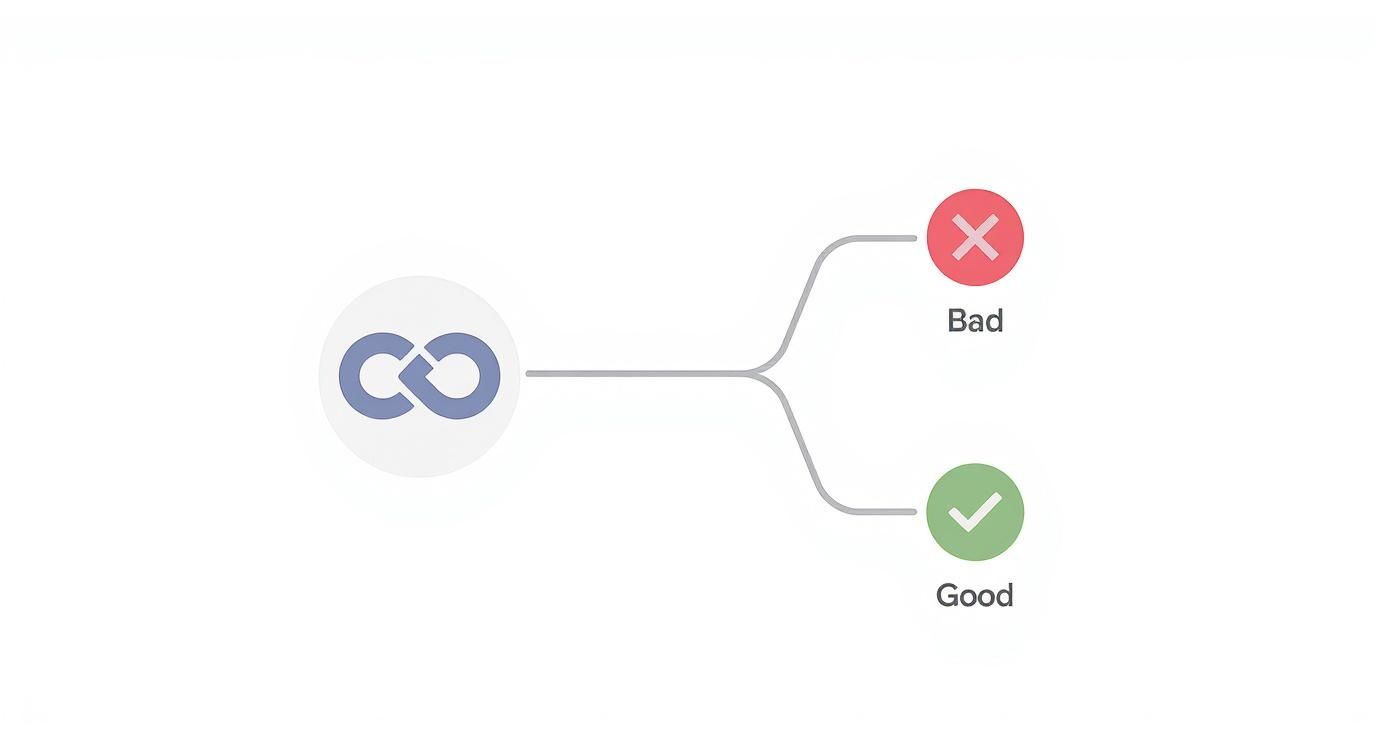
As you can see, a naive approach almost always ends in a block. The reliable path to data involves a smarter strategy, using things like intelligent waits and proxy rotation to stay under the radar.
Trying to solve all this yourself is a massive headache. You could wire up a third-party CAPTCHA-solving service, but that adds another layer of complexity and cost. And managing your own pool of high-quality residential proxies while perfecting browser fingerprints is a full-time job in itself.
At this point, you have to ask yourself: is my goal to get data, or is it to become an expert at fighting anti-bot systems? Your time is better spent on the former.
Knowing When to Hand Off the Hard Parts to a Service
For any serious project that needs to be reliable and fast, offloading these problems to a specialized service like ScrapeUnblocker is the most pragmatic move. Instead of battling proxies, fingerprints, and CAPTCHAs, you just make one simple API call.
A good service takes care of all the messy details for you:
Automatic Proxy Rotation: It intelligently routes your requests through a huge network of premium residential IPs, handling all the retries and IP health checks automatically.
Browser Fingerprint Management: It uses real browsers with battle-tested fingerprints that look completely human to even the toughest anti-bot systems.
CAPTCHA Solving: It detects and solves CAPTCHAs on the fly, including tricky ones like Cloudflare's. We have a whole guide on how to approach a Cloudflare Turnstile bypass.
By letting a service handle the blockades, your selenium web scraping python script can do what it does best: parse clean HTML. This frees up your team to focus on extracting real value from the data instead of just trying to get to it.
Common Questions About Selenium Scraping
As you get your hands dirty with Selenium, a few questions always seem to surface. Whether you're stuck on a tricky script or just figuring out the best approach for a new project, these answers should clear up some common hang-ups.
This isn't just theory; it's advice pulled from years of building and running scrapers in the wild.
Selenium vs. BeautifulSoup: Which Is Better?
This is the classic question, but it’s a bit like asking if a hammer is better than a screwdriver. They’re both fantastic tools, but they’re designed for different jobs. The real magic happens when you use them together.
BeautifulSoup is a parser. Give it a static HTML file, and it will rip through it at incredible speed. It’s perfect for pulling data out of a document you already have, but it can't interact with a website or run any JavaScript on its own.
Selenium is a browser automation tool. It literally drives a real browser like Chrome or Firefox. That means it can click buttons, fill out forms, scroll down a page, and wait for JavaScript to load new content—just like a person would.
So, what's the pro move? Use Selenium to do the "browser" work. Let it navigate to the page, click whatever it needs to click, and wait until all the dynamic content is loaded. Once the page is in its final state, grab the page source.
Then, hand that fully rendered HTML over to BeautifulSoup. You get Selenium's power to deal with modern, interactive websites and BeautifulSoup's raw speed for parsing the final result. It's the best of both worlds.
How Can I Make My Selenium Scraper Faster?
Let's be honest: Selenium will never be as fast as a simple HTTP request with a library like Requests. You're firing up a whole browser, after all. But you can absolutely make it faster and less resource-hungry.
Go Headless. This is your biggest win, hands down. Running without the visual browser window (the GUI) frees up a ton of memory and CPU. It’s a must for running scrapers on a server.
Block the Junk. Do you really need to load every ad, tracking script, and high-res image? Probably not. You can configure the browser driver to block images and even certain CSS or JavaScript files, which can dramatically speed up page load times.
Stop Using ! Fixed delays are the enemy of efficiency. Instead, use explicit waits (). This tells your script to wait for a specific condition—like an element becoming clickable—instead of just waiting a fixed 5 seconds. It waits for exactly as long as it needs to, and not a millisecond more.
Choose Your Locators Wisely. When you can, always reach for an element by its or a specific . These are almost always faster for the browser to find than complex XPath expressions that have to search the entire page structure.
What Is a WebDriver, and Why Do I Need It?
Think of the WebDriver as the middleman between your Python code and the actual browser. It’s the translator.
Your Selenium script sends simple commands like, "find the button with the ID 'submit-btn' and click it." The WebDriver takes that command and translates it into the specific, low-level language that Chrome, Firefox, or Edge understands.
Each browser has its own dedicated driver:
ChromeDriver for Google Chrome
GeckoDriver for Mozilla Firefox
EdgeDriver for Microsoft Edge
Without the right WebDriver, your script is just shouting commands into the void. Luckily, this used to be a huge pain, but modern versions of Selenium come with Selenium Manager. It automatically detects which browser you have, checks its version, and downloads the correct WebDriver for you. It makes the whole process pretty seamless now.
Tired of getting blocked by CAPTCHAs and complex anti-bot systems? ScrapeUnblocker handles all the hard parts for you. Our API manages proxy rotation, browser fingerprinting, and CAPTCHA solving, so you can focus on the data, not the roadblocks. Get clean, reliable HTML from any website with a simple API call. Start your free trial at https://www.scrapeunblocker.com.


Comments